See all your team’s work on one board
Put each task on a card, and move it across the board as it gets done. Everyone can see what’s happening, who’s on it, and what’s coming up next.
- Drag and drop, nothing to learn
- See straight away when work is piling up
- Share boards with the people who need them
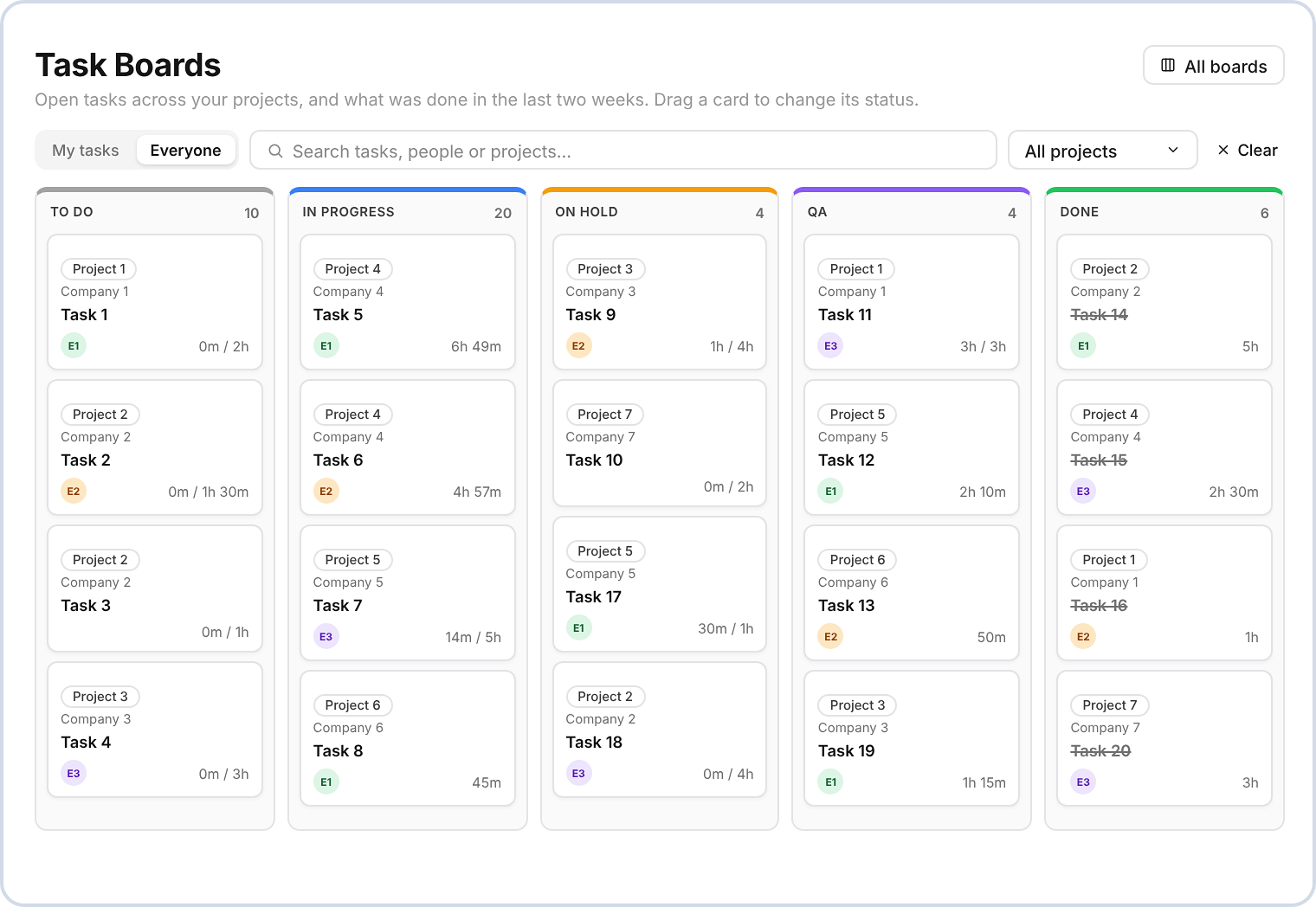

No more confusion about who’s doing what
To-do lists live in notebooks, group chats and people’s heads. Things get done twice, or not at all. And nobody notices that one person is juggling ten jobs while someone else is waiting for work.
Who, what and when, all in one place
- Who’s on it. Put someone’s name on each card, so there’s no question who’s doing what.
- When it’s due. Add a due date. Overdue cards stand out, so nothing slips through.
- Labels. Tag cards with coloured labels, like “Urgent” or “Waiting on customer”.
- Drag and drop. Move cards between columns as the work moves along, on your computer or your phone.
Too much on the go? You’ll see it
Set a limit on how many cards can sit in a column at once, for example no more than five jobs “In progress”. If a column goes over, Clirp flags it so you can sort it out before things get stuck.
“What am I meant to be doing today?”
My cards gathers every card with your name on it, from every board, into one list. Use the filters to find exactly what you’re looking for on any board.
Just ask
Tell Clirp’s built-in AI agent what you need in plain English. It sets up the board, columns and cards for you to check before anything is saved.
Try asking
“Make a board for website jobs with columns for To Do, Designing, Review and Live.”
“Add a card for the Smith kitchen job, due Friday, and give it to Jamie.”
“Add a red ‘Urgent’ label to the office board.”
Questions? We’ve got answers
Anything with steps: jobs for customers, marketing ideas, office to-dos, hiring, maintenance requests. If you’d write it on a sticky note, it can go on a board.
Yes. Name them whatever you like, add as many as you need and give them their own colours.
Only the teammates you invite. You choose whether each person can just look, add and move cards, or manage the whole board.
Yes. Task boards work in the browser on your phone, tablet or computer, and you can drag cards with your finger.
Open My cards to see every card with your name on it, from every board, in one list.
Ready to see the whole picture?
See how a simple board can keep your whole team on the same page.